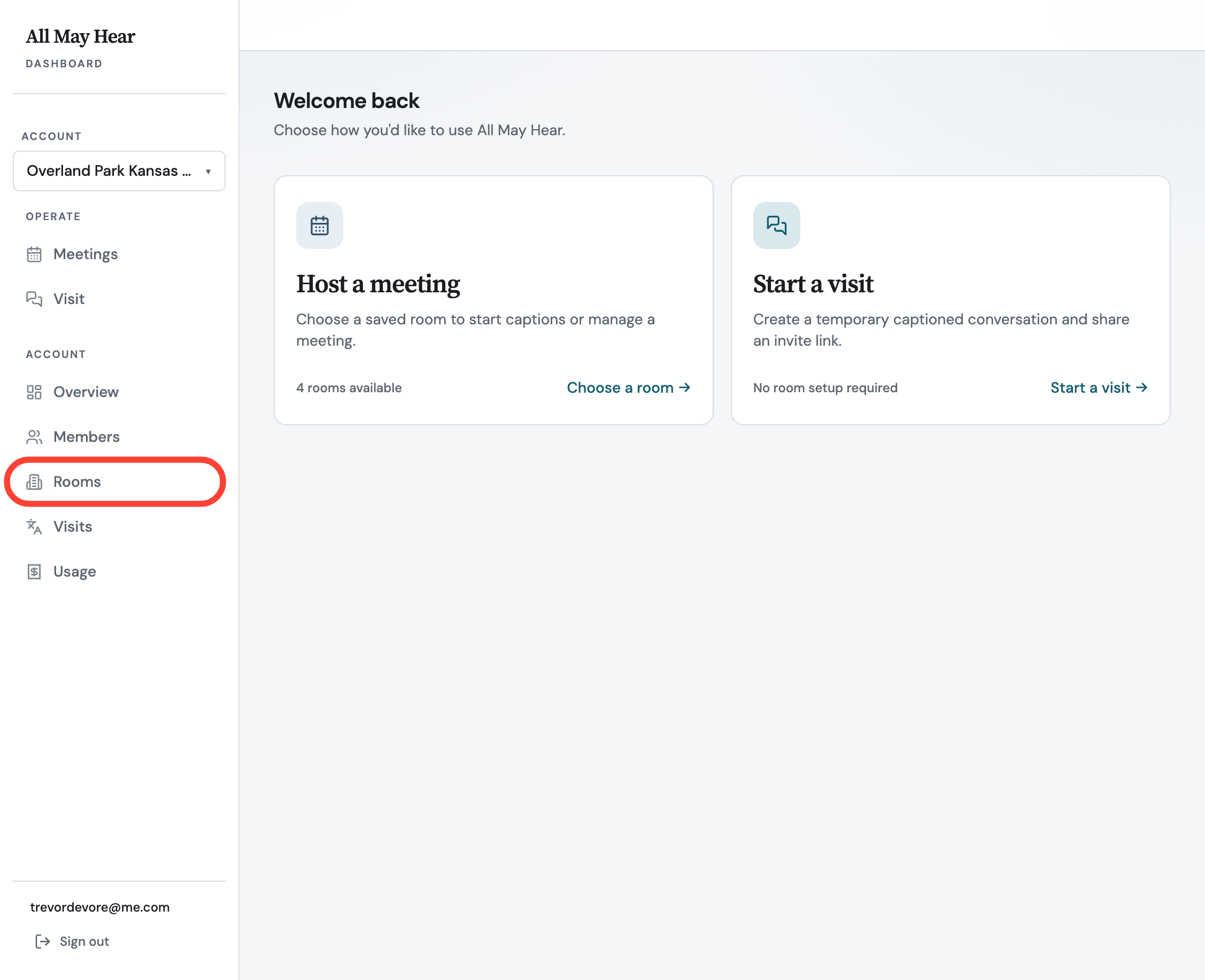
- Navigate to the Rooms tab from the dashboard
Click the Rooms tab on the dashboard and navigate to the room where you want to use the recorder.
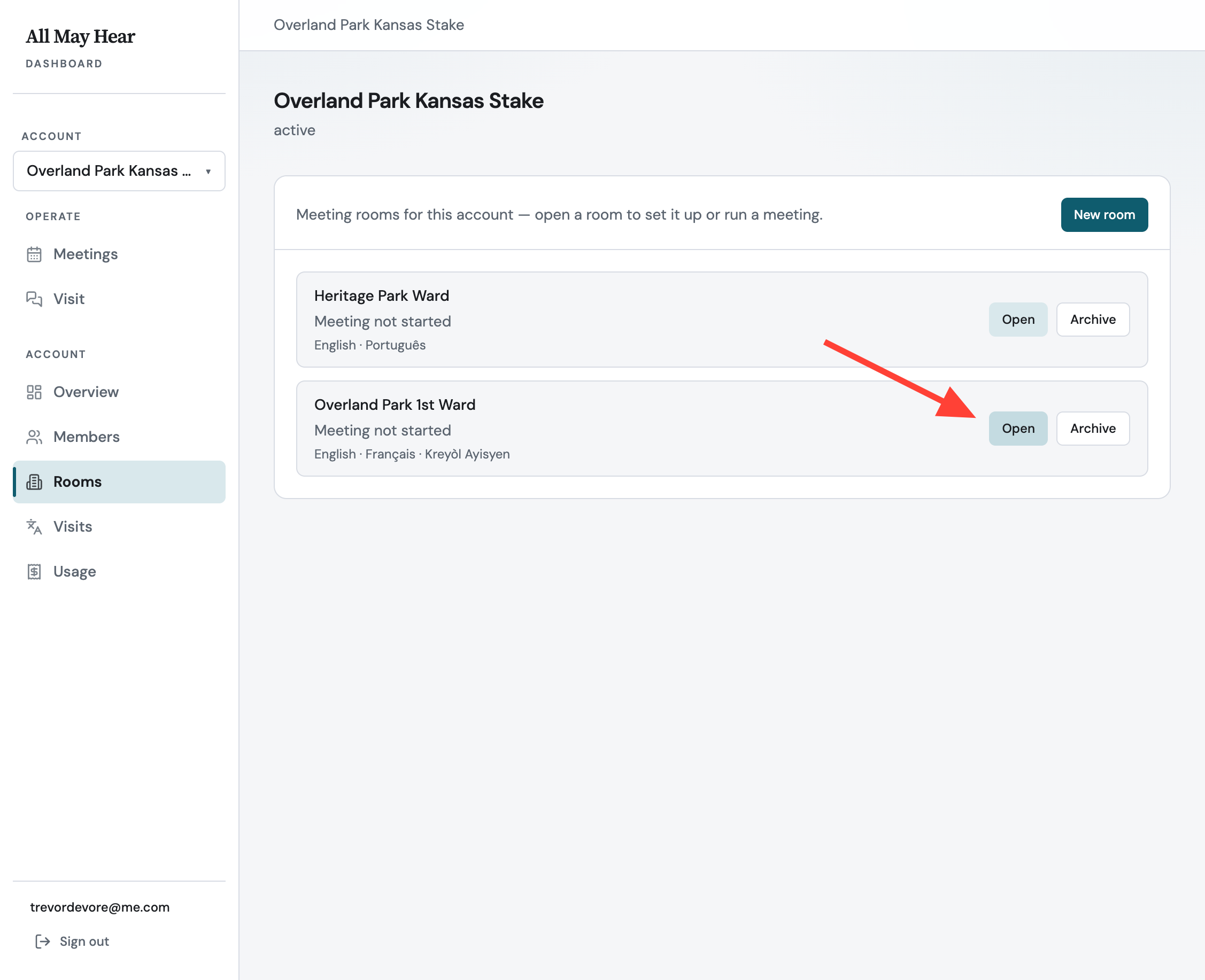
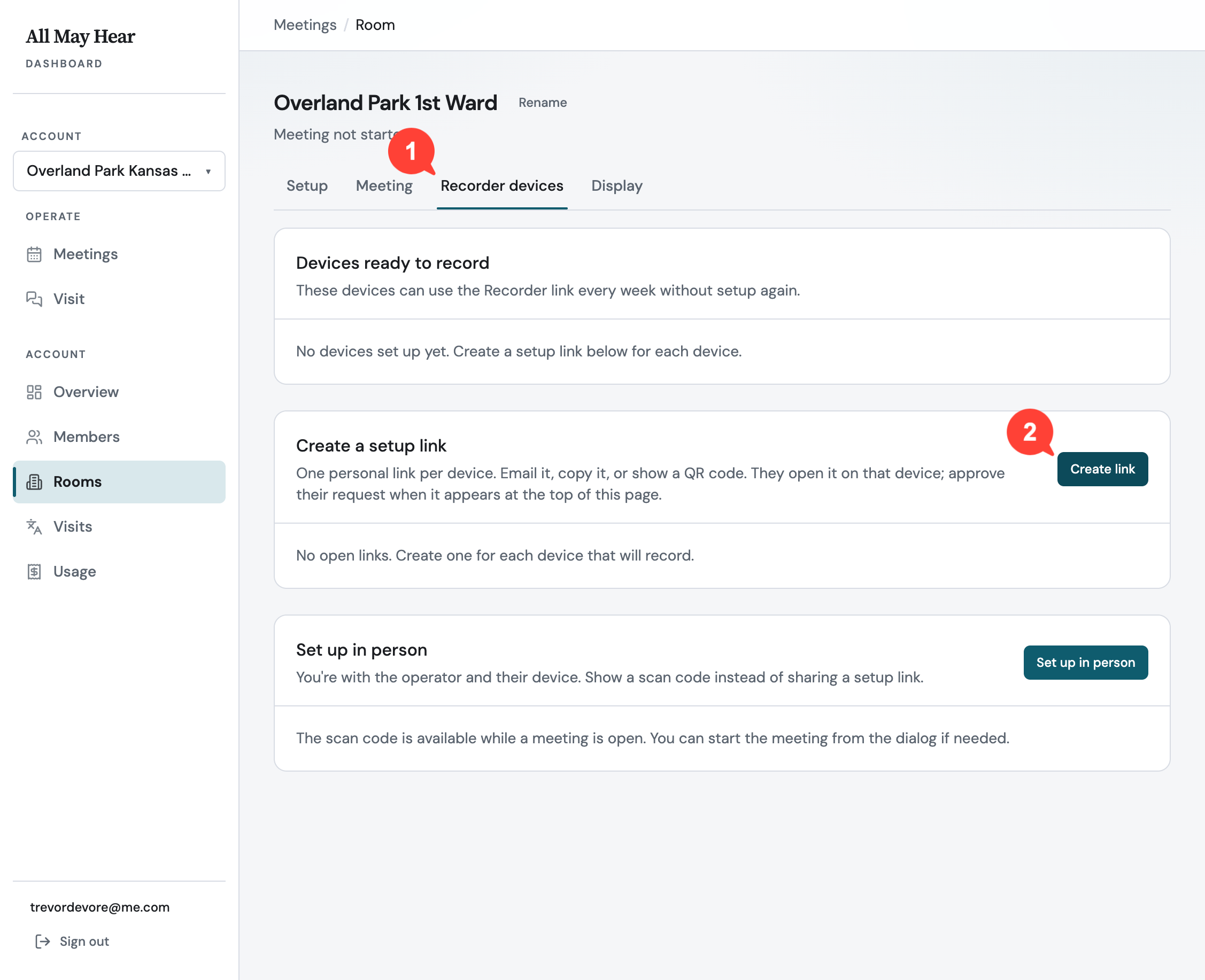
- Open the Recorder Devices tab for the selected room
Select the Recorder Devices tab for the chosen room and click Create link.
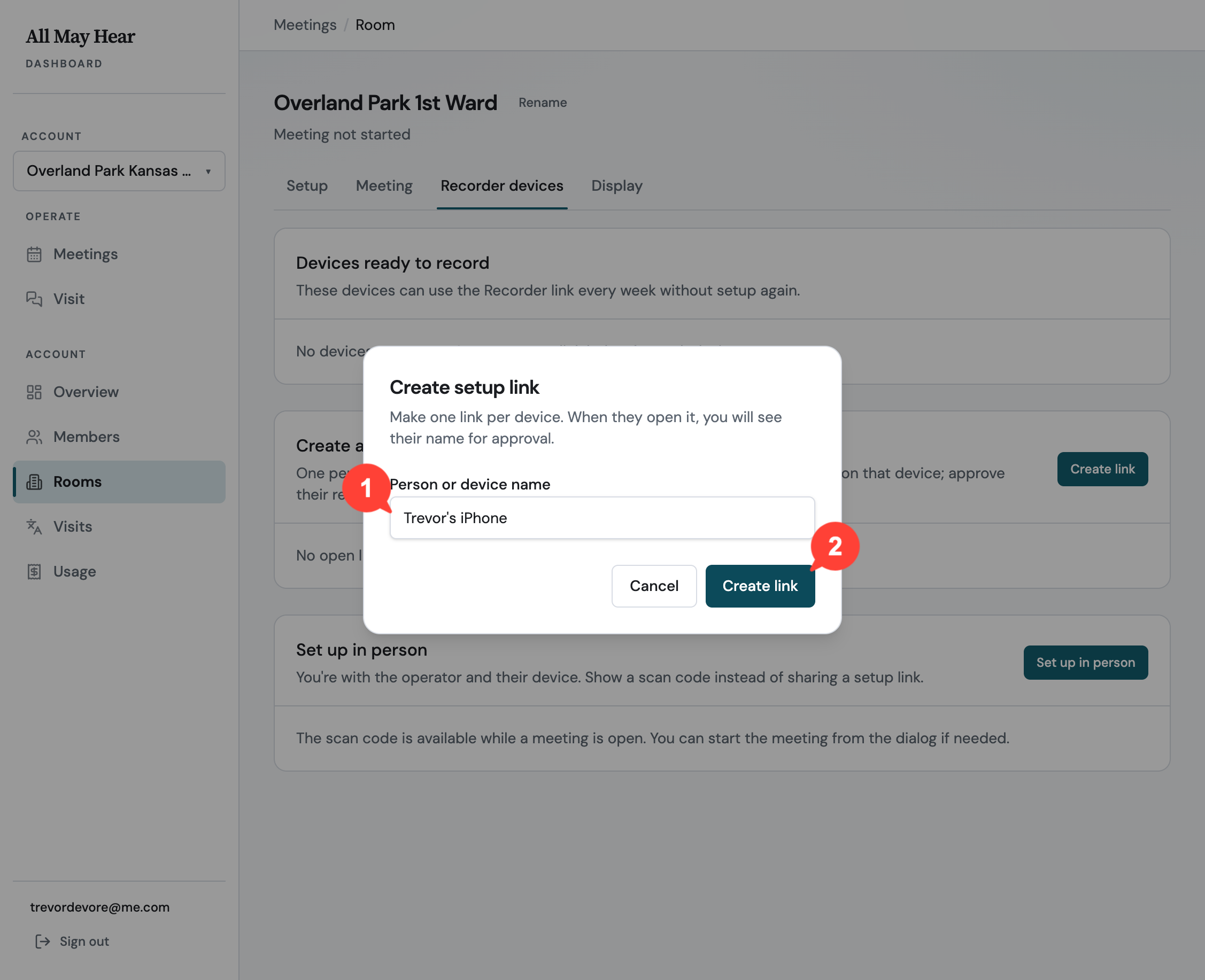
- Create a registration link for the device
ClickCreate Link.
Enter a name for the device and create the link.
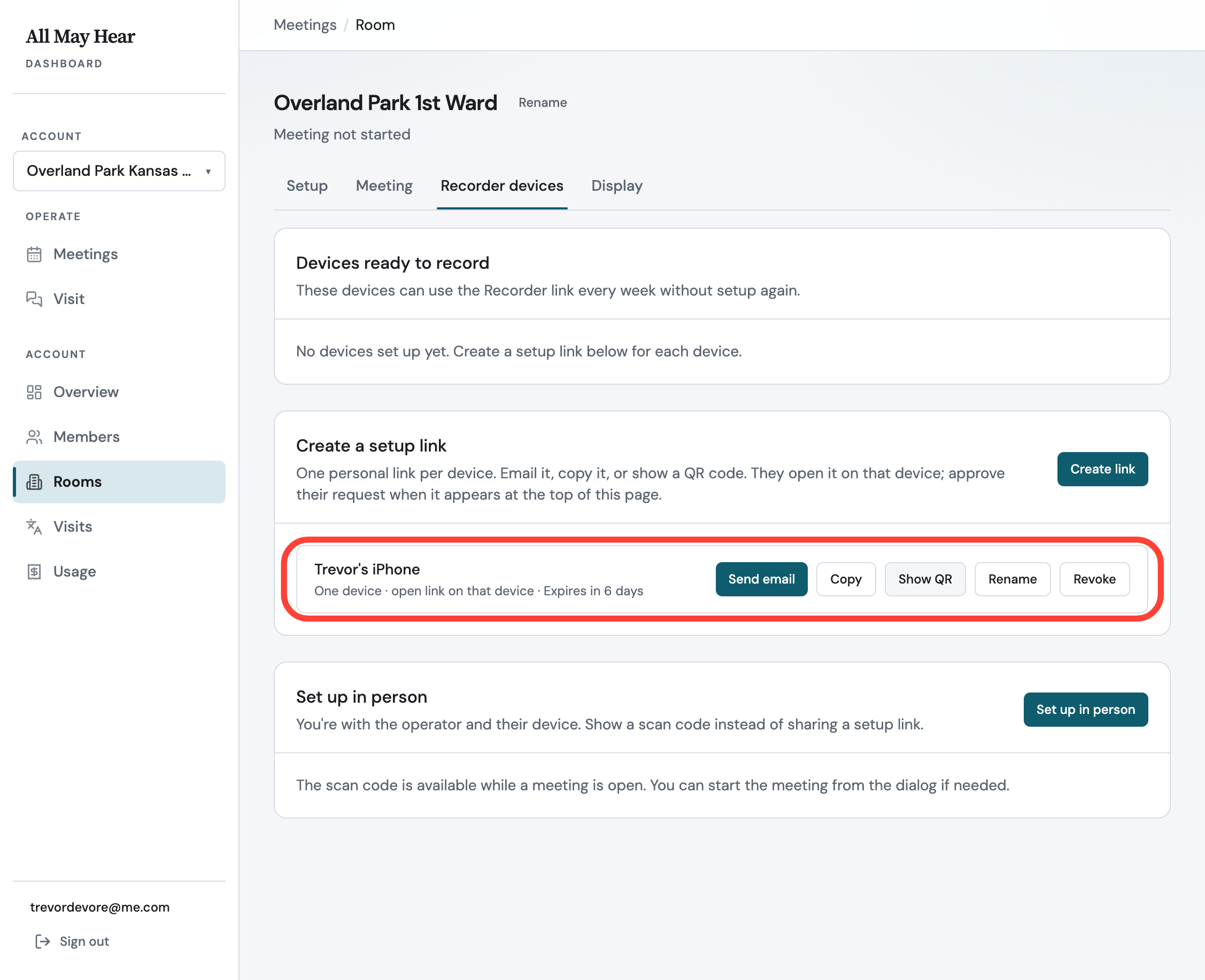
- Share the registration link or QR code
Send the registration link by email, copy the URL, or show the QR code for the device to scan.
- You can revoke the link if needed.
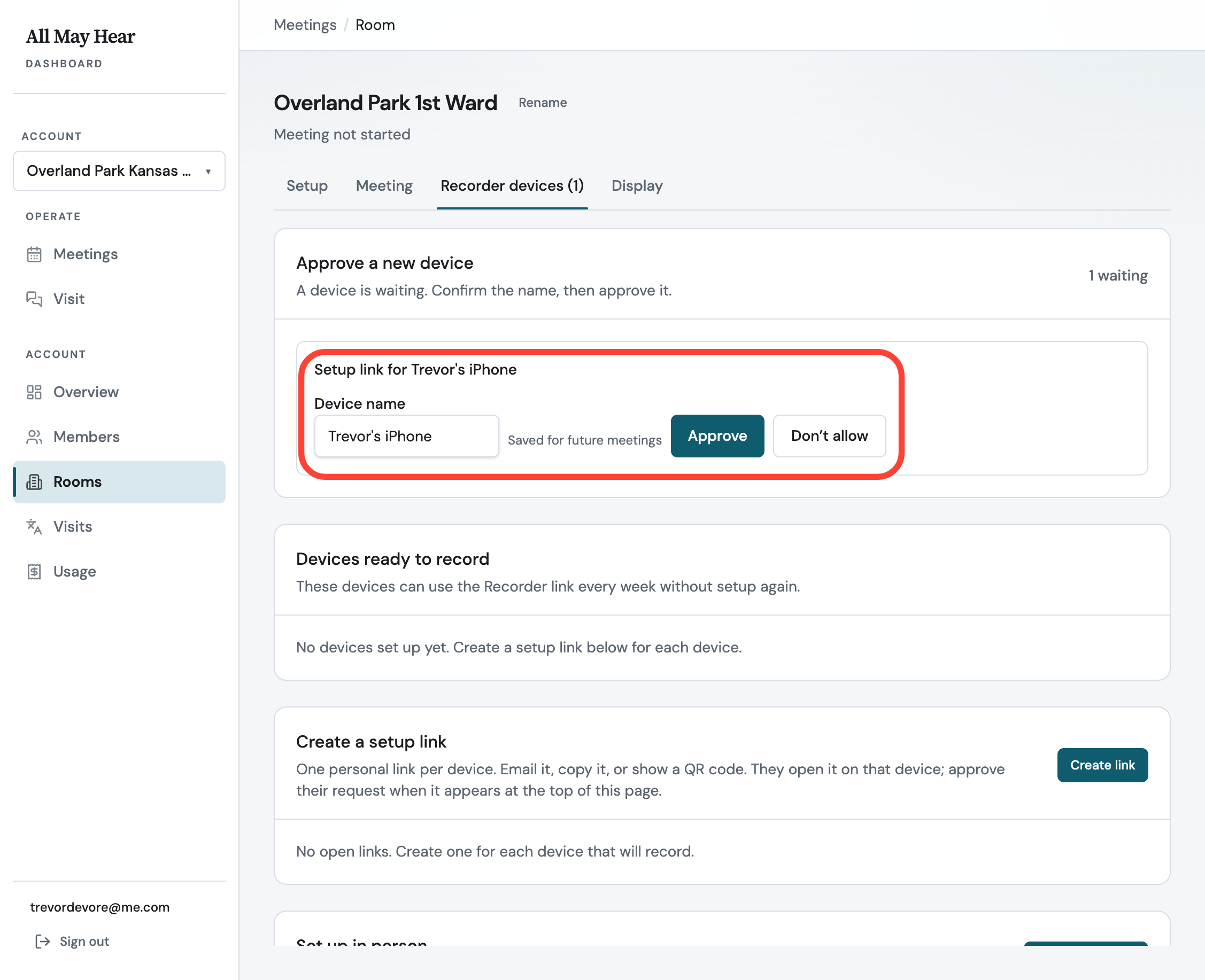
- Approve the new device
After the device uses the link or scans the QR code, locate it under Approve a new device. Rename if needed, then click Approve.
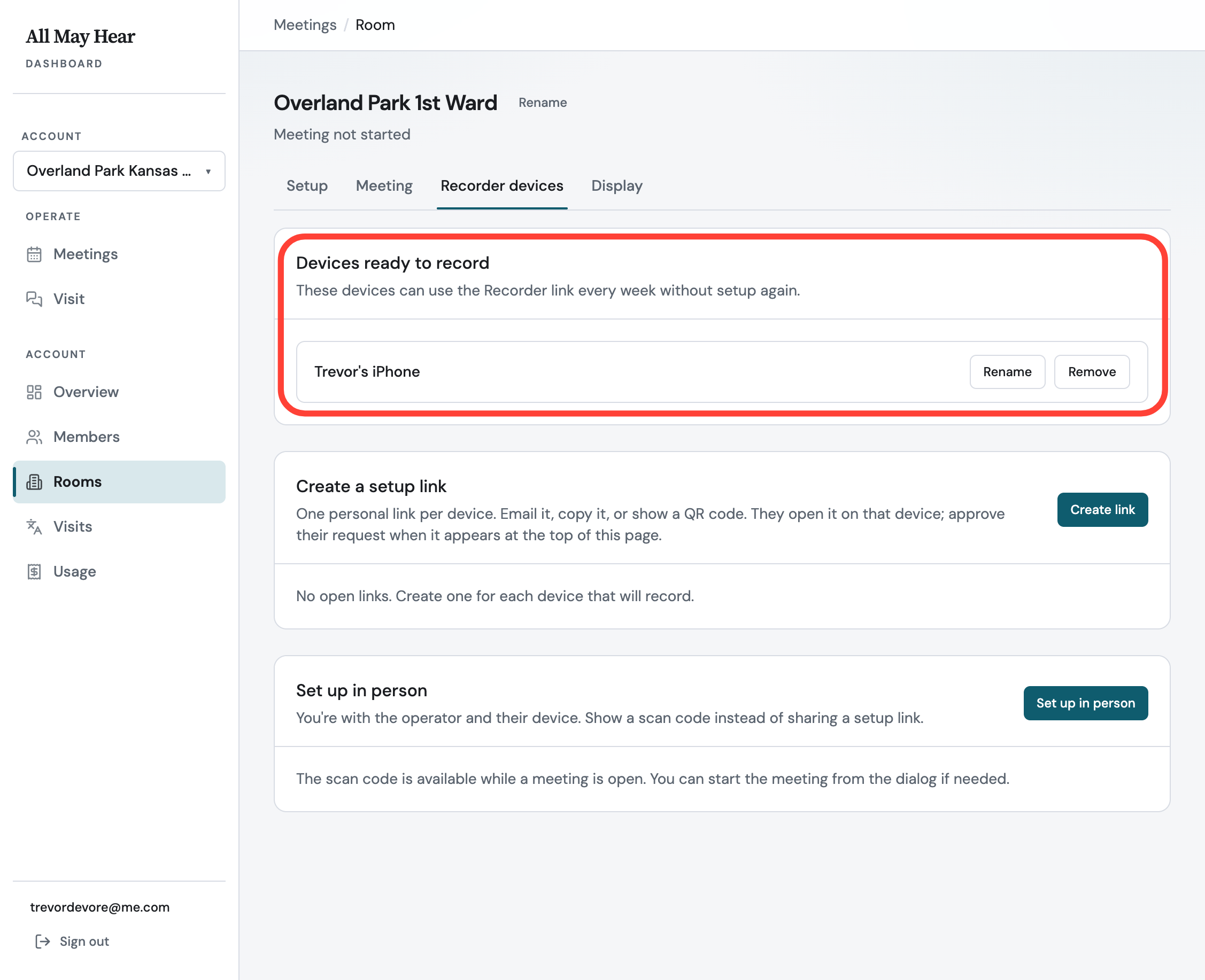
Once approved, the device can connect and run interpretation as the recorder in future meetings.
How to setup a device to be used as a Recorder to translate a meeting
Updated on
0 Comments
Add your comment