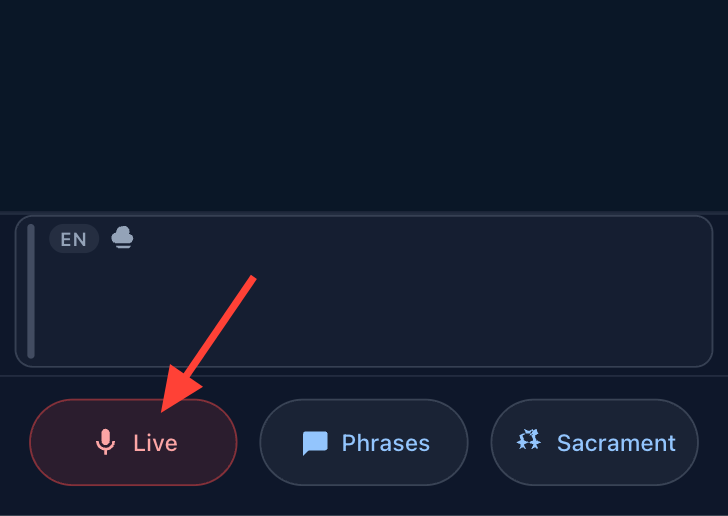
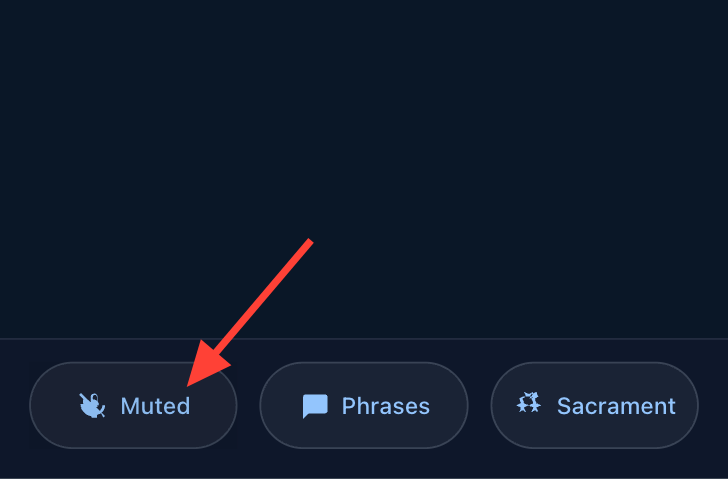
- Microphone toggle: Toggles audio capture on or off. When audio is being capture the button is labeled Live. Otherwise it is labeled Mute.
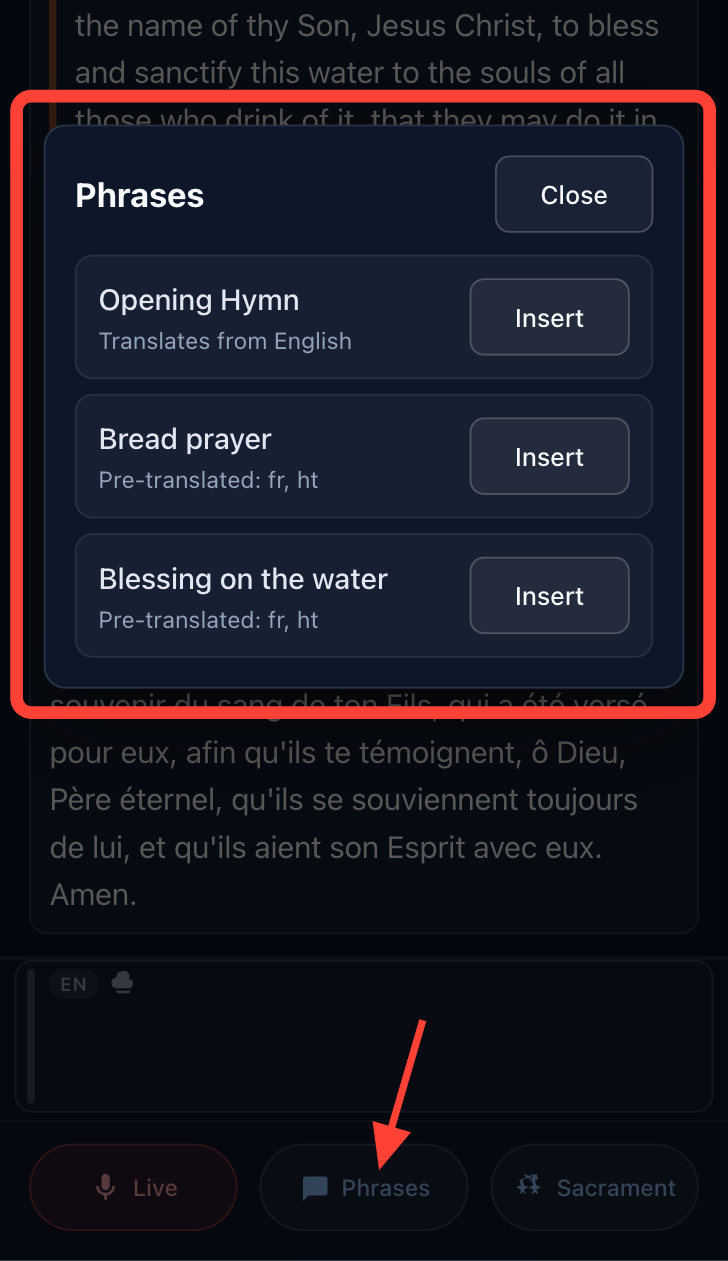
- Phrases: Lets you insert prepared phrases manually.
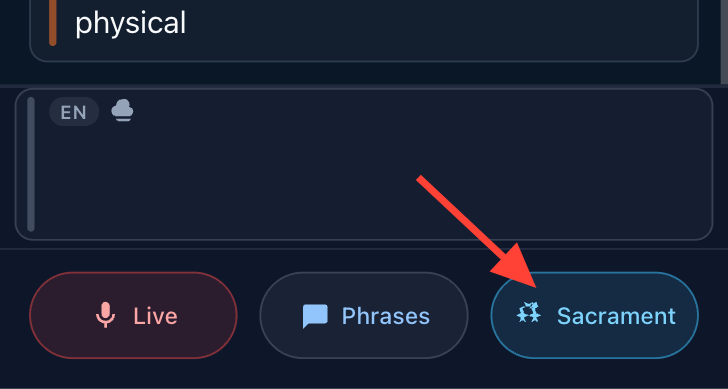
- Sacrament: Activates special mode for sacrament prayers, inserting official translations.
- Stop: Stops the meeting once it is over.
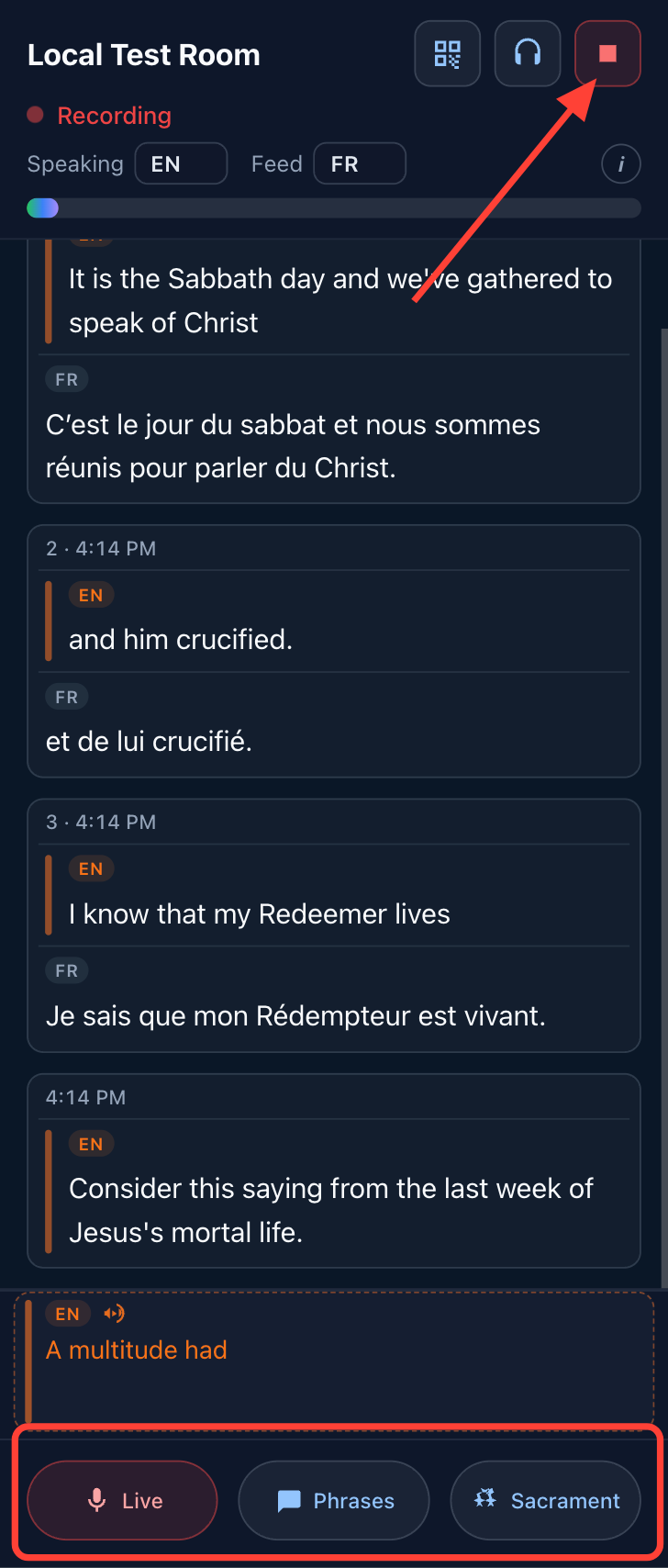
How audio is captured during a meeting
When the microphone is Live speech will be detected and translated. Above the buttons in the footer is the Transcription area. This is where the transcription of the audio feed is gathered up before being translated.
This area will change based on the current state.
- If no spoken text is detected or music is playing, the area is grayed out.
- When someone is speaking, transcription appears in orange.
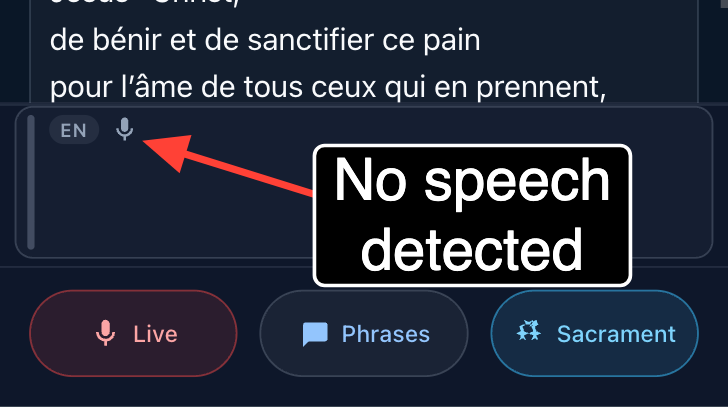
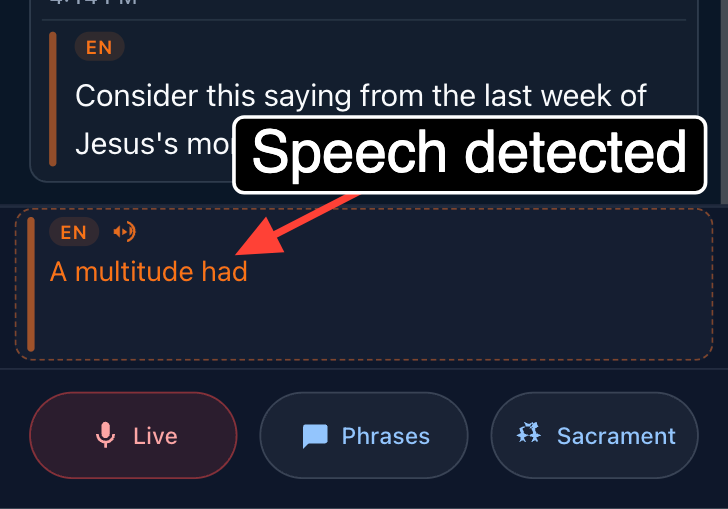
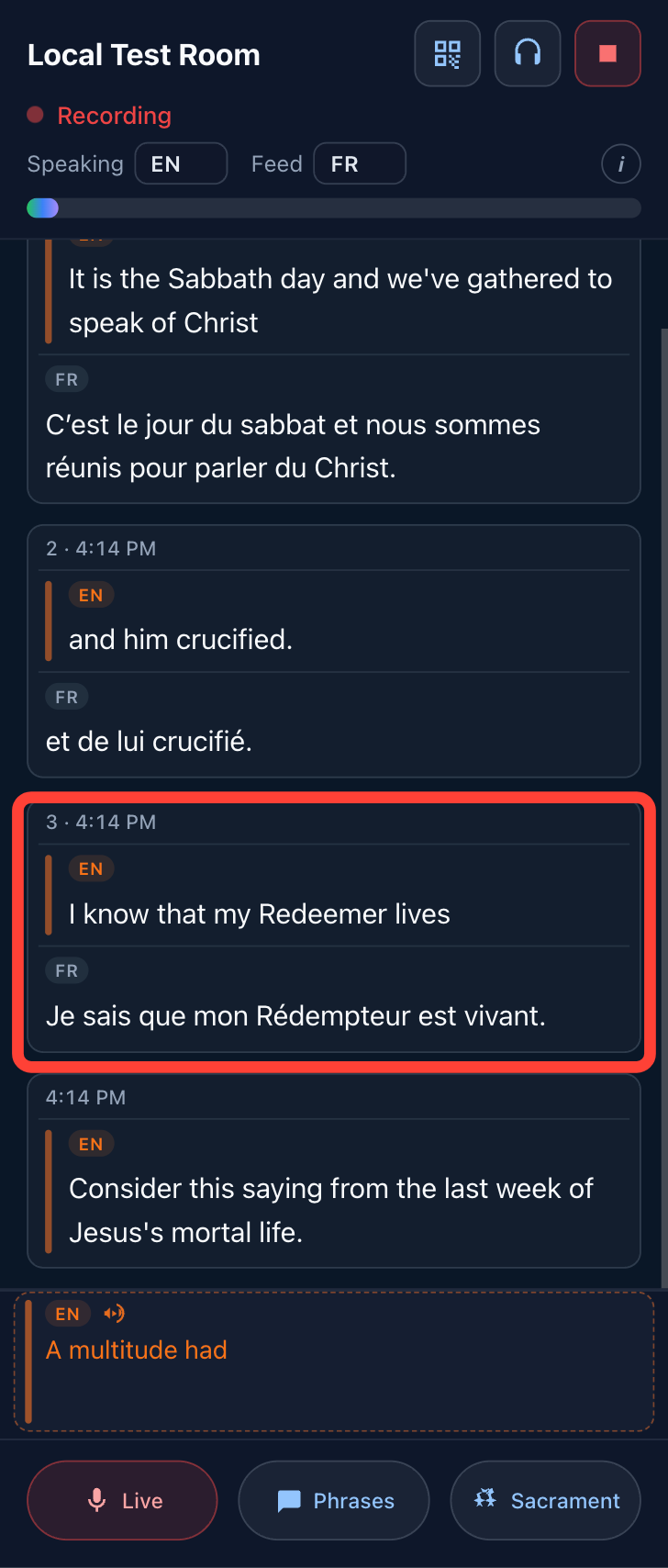
As enough text is gathered, a block appears in the feed with:
- The transcription of the spoken language
- The translation in the selected feed language
Use Sacrament mode for Sacrament prayers
The Sacrament button enters a mode where the software watches for the beginning of the Prayers on the Bread and Water. When the beginning of a prayer is detected the official translation provided by the Church of Jessus Christ of Latter-day Saints is inserted rather than relying on an AI translation of what is being spoken.
- Press the Sacrament button when the congregation starts the sacrament hymn.
- The application enters sacrament mode:
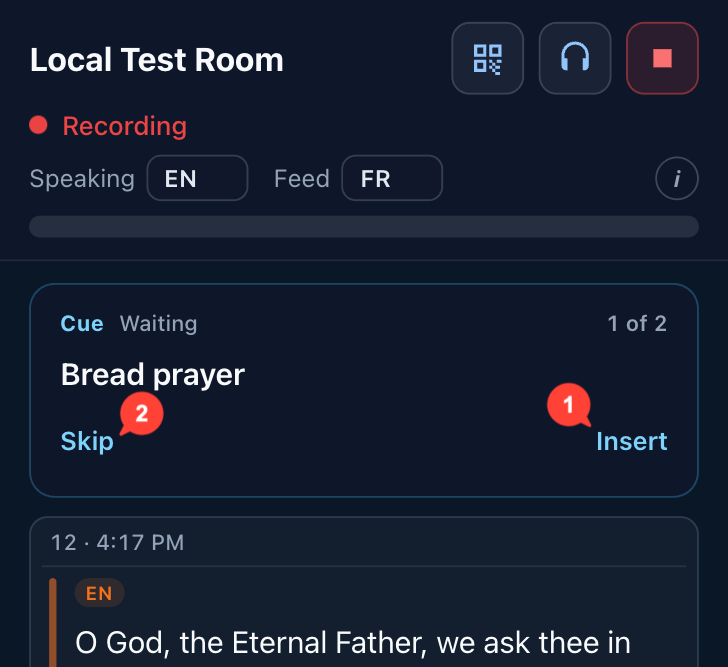
- A card appears at the top of the feed showing which prayer is monitored.
- The mode stays on until both prayers are done; you do not need to turn it off manually.
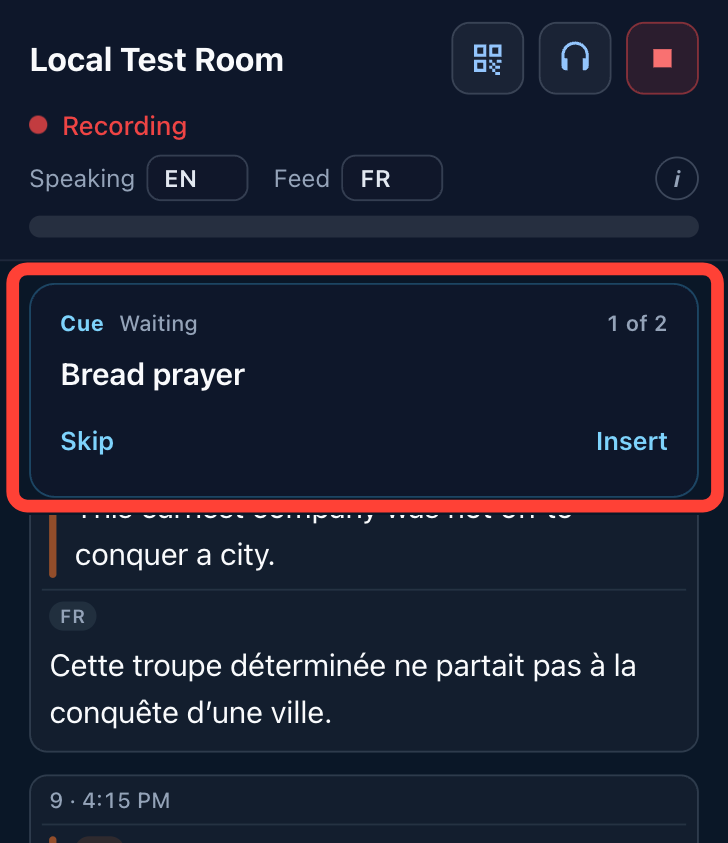
- When the prayer on the bread begins:
- The official church translation for the prayer is inserted into the feed (text and audio).
- The microphone is shut off until 10 seconds of silence after the prayer.
- If the prayer is repeated, only the first is inserted.
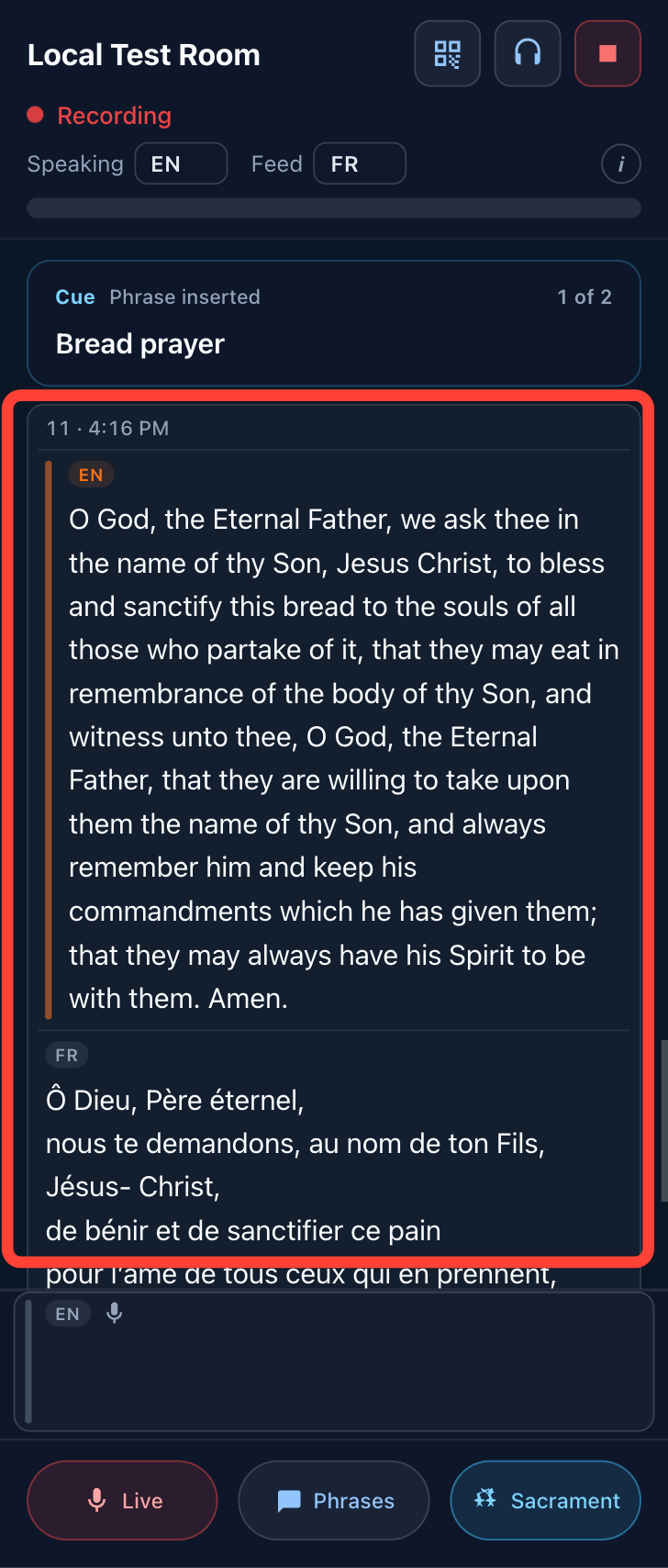
- After 10 seconds of silence:
- Sacrament mode watches for the blessing on the water.
- Other spoken words (e.g., instructions) are translated normally.
- When the prayer on the water begins:
- The official translation is inserted.
- After 10 seconds of silence, the microphone is enabled and sacrament mode turns off.
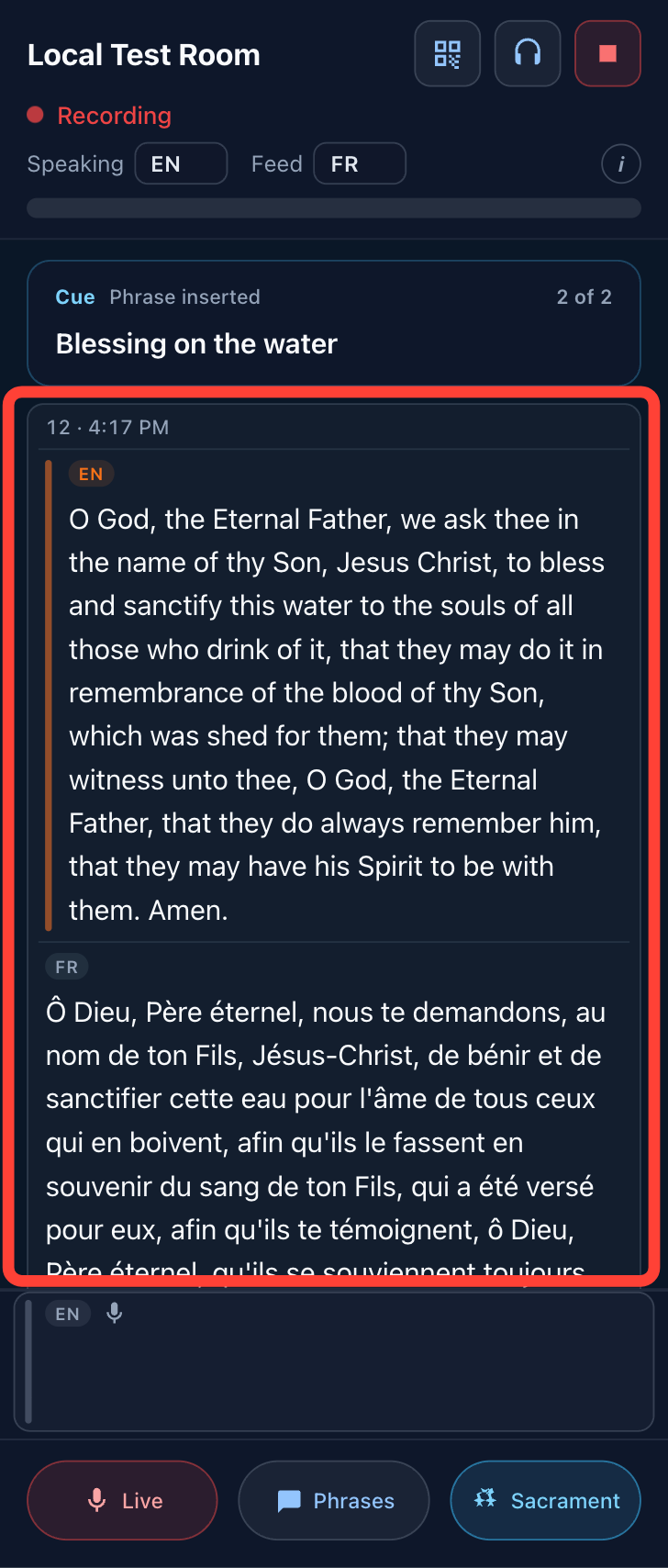
- The meeting continues as normal after sacrament mode ends.
The Sacrament card has some buttons which give you control over what happens in case something goes wrong.
- The Insert button will insert the prayer into the feed as if it had been spoken. Use this in the case where the prayer was not detected because the person giving the prayer didn't speak clearly enough for the transcription to detect the correct words.
- The Skip/Back buttons allow you to bypass a prayer or return to the previous prayer while Sacrament mode is active.
Insert prepared phrases if needed
Phrases can be used to insert phrases that will be translated when inserted, or pre-translated phrases that should be inserted as-is rather than being translated by AI. For example, if you choose not to use the Sacrament feature you can mute the microphone and insert the Sacrament prayers manually at the appropriate time.
- Click the Phrases button to insert a prepared phrase.
This can be used for:
- Manually inserting the blessing on the bread or water
- Adding other prepared text to the meeting
Turning the Microphone off and on
Click the Live button to toggle audio capture.
- When set to Live, audio is captured.
- When set to Muted, audio is not captured.
While muted:
- Your microphone stops sending audio for transcription.
- Any unfinished caption still gathering (the in-progress orange/grey line) is thrown away — it will not be translated or read aloud.
- Captions and translations that already finished stay in the feed.
- Translations that had already started may still finish and appear.
- Readers keep seeing the live session; you can unmute and continue without starting over.
0 Comments
Add your comment