Enable Text-to-Speech
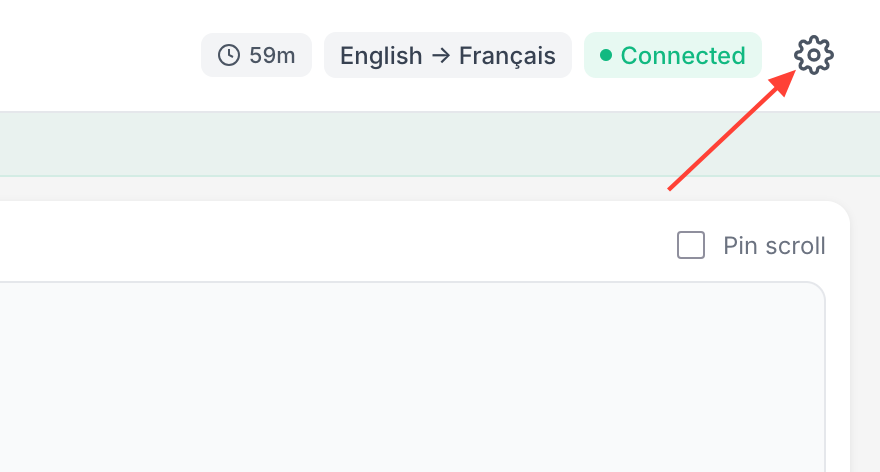
- Click the settings icon.
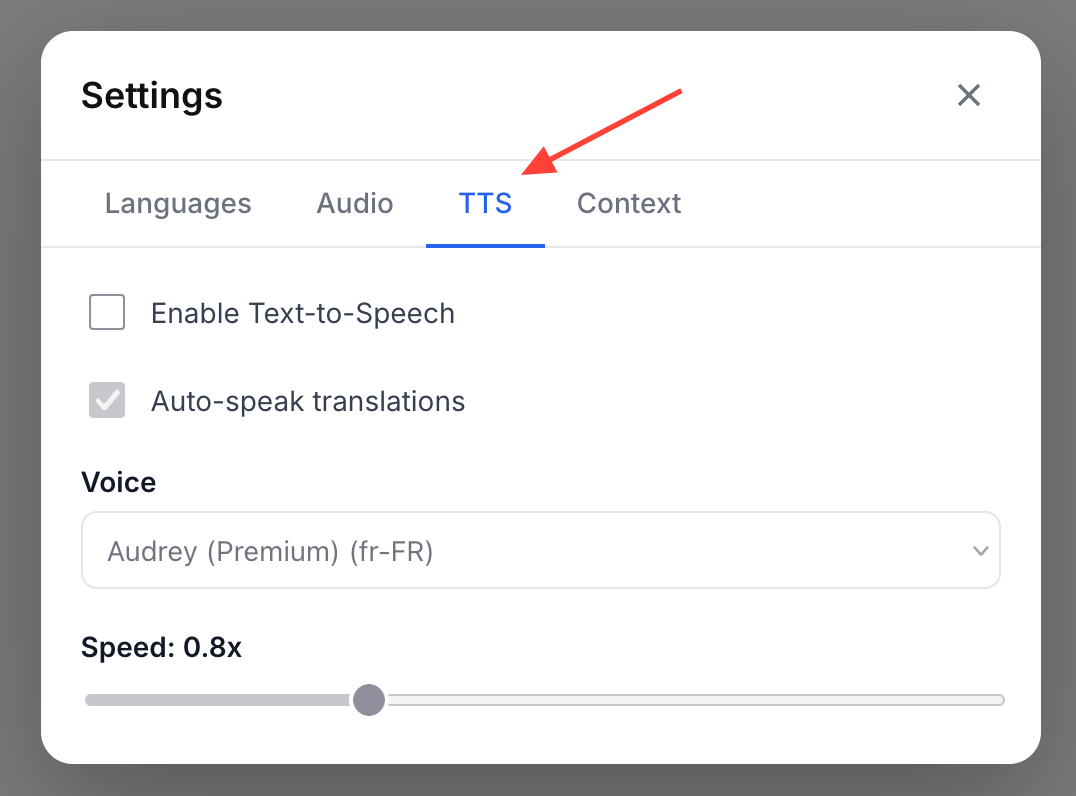
- Select the TTS tab
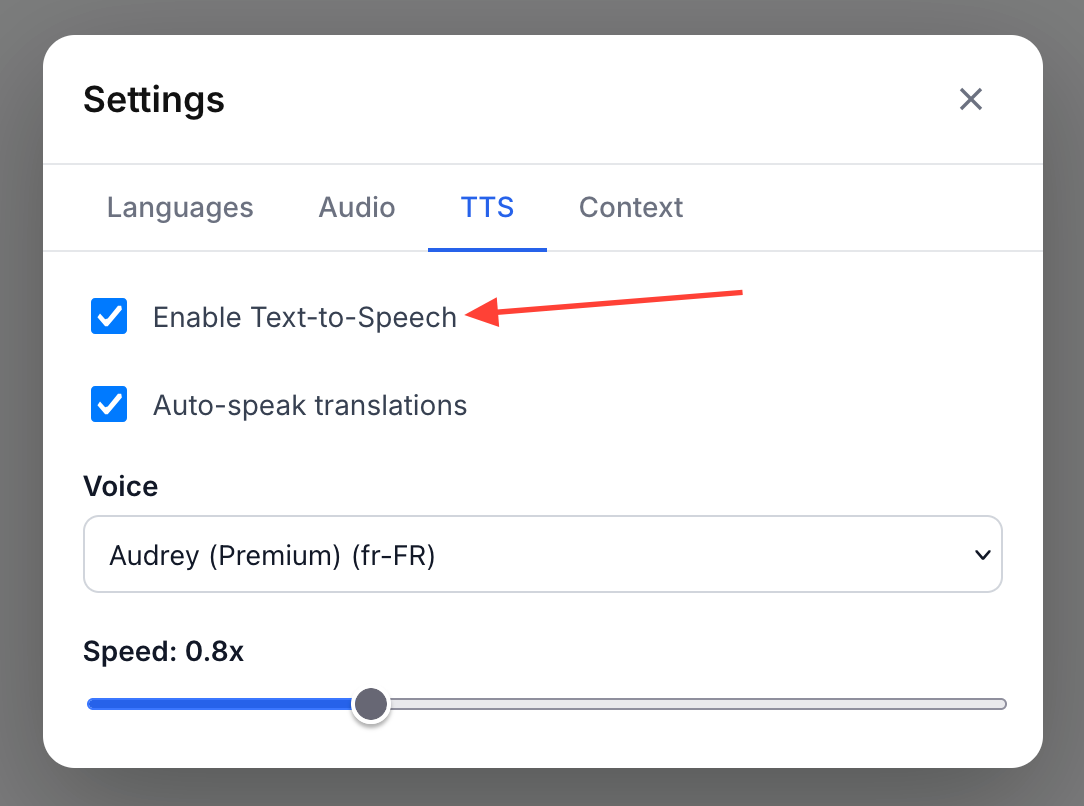
- Enable text-to-speech checkbox
You will hear a confirmation phrase when you check the box.
Configure TTS Options
- Leave Autospeak translations checked for real-time spoken translations.
Select a voice.
Some voices may require download.
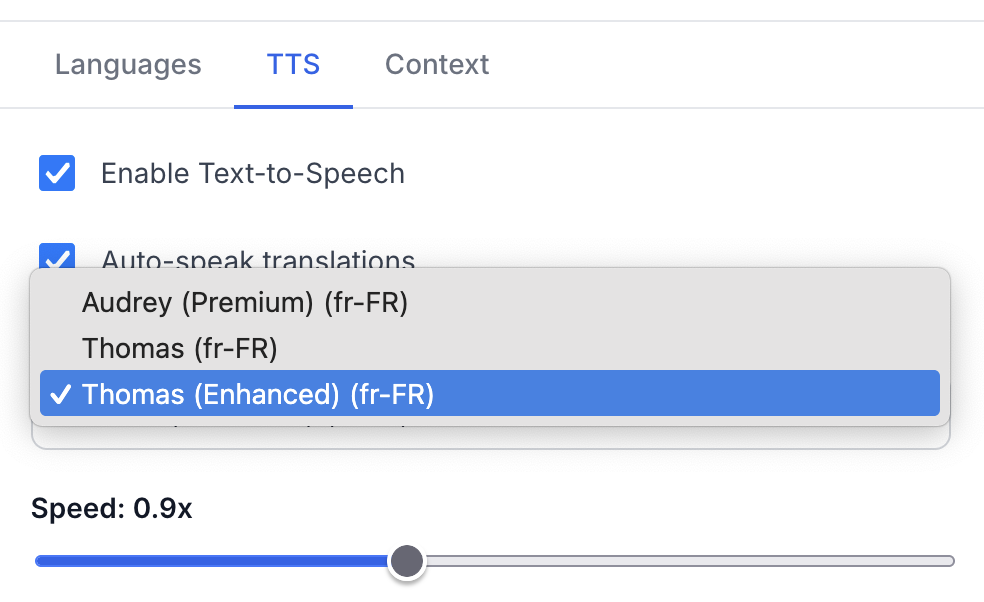
- Adjust speed as needed.
Default is 0.9x; slower speeds may improve clarity. For French on macOS 0.9 is a good speed to start with.
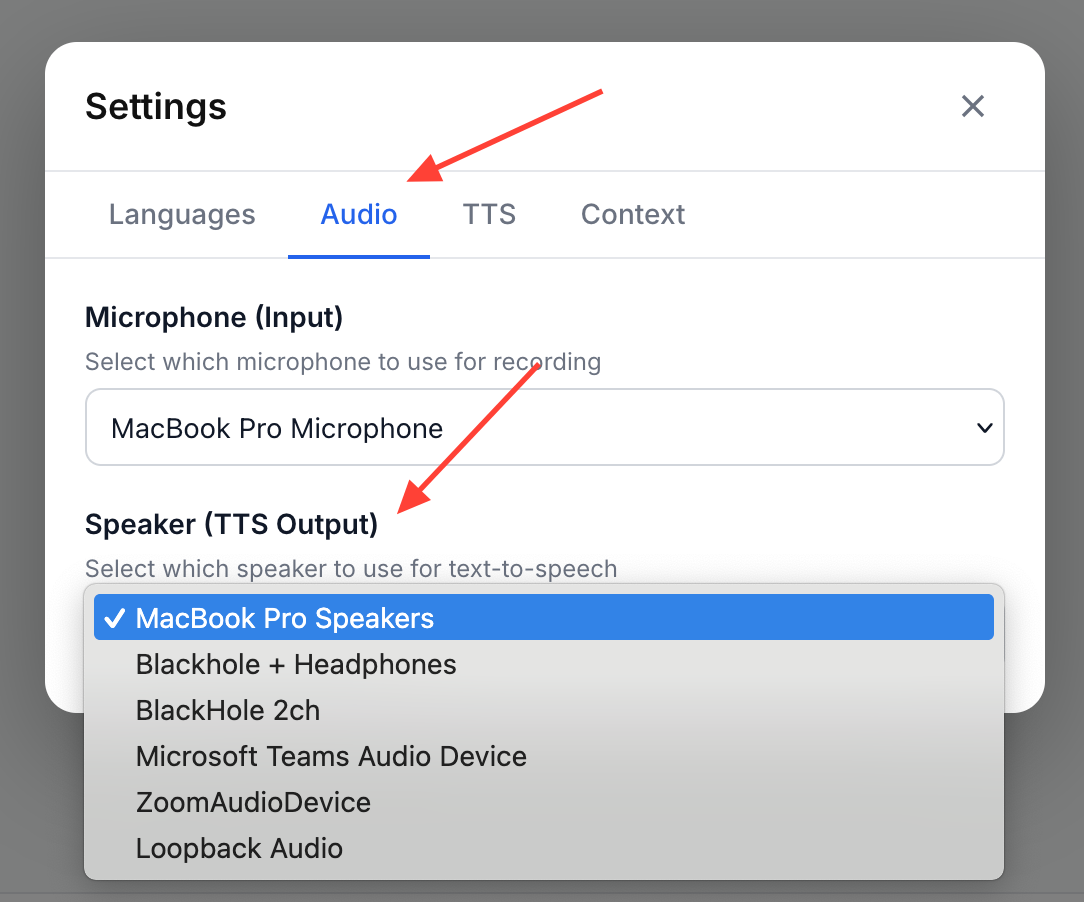
Select TTS audio output
The speaker used to playback TTS is selected from the Audio tab. Switch tabs and choose an audio output device.
If you are using an Assistive Audio System then select the output that is connected to the hub that broadcasts audio to the headsets.
Test and Use TTS
- Type sample text to test playback and settings.
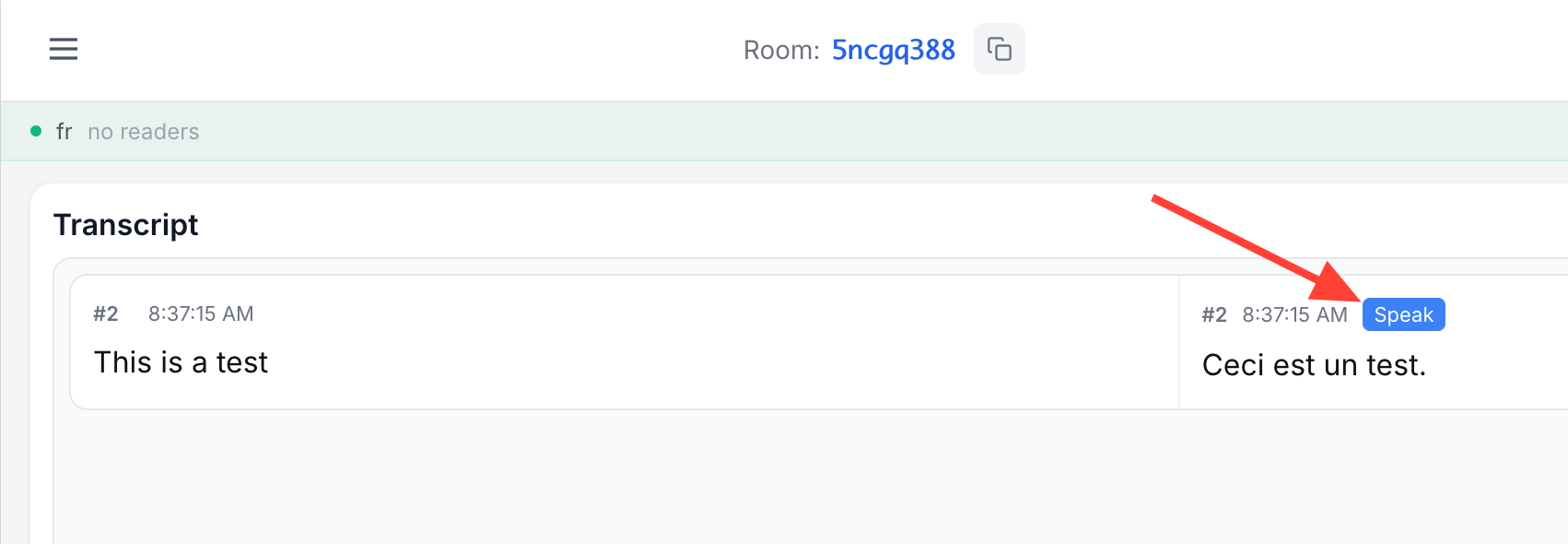
After translation, Click the Speak button in the translated tile to replay audio.
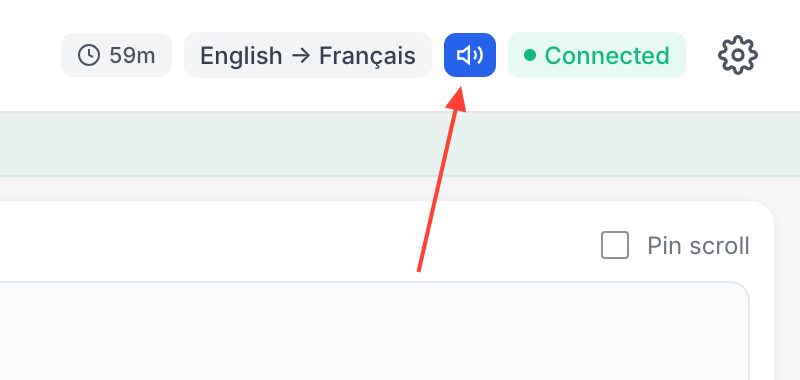
When TTS is enabled, a blue microphone icon appears at the top right. Click it to quickly change TTS settings.